
Documentation Index
Fetch the complete documentation index at: https://docs.vowen.ai/llms.txt
Use this file to discover all available pages before exploring further.
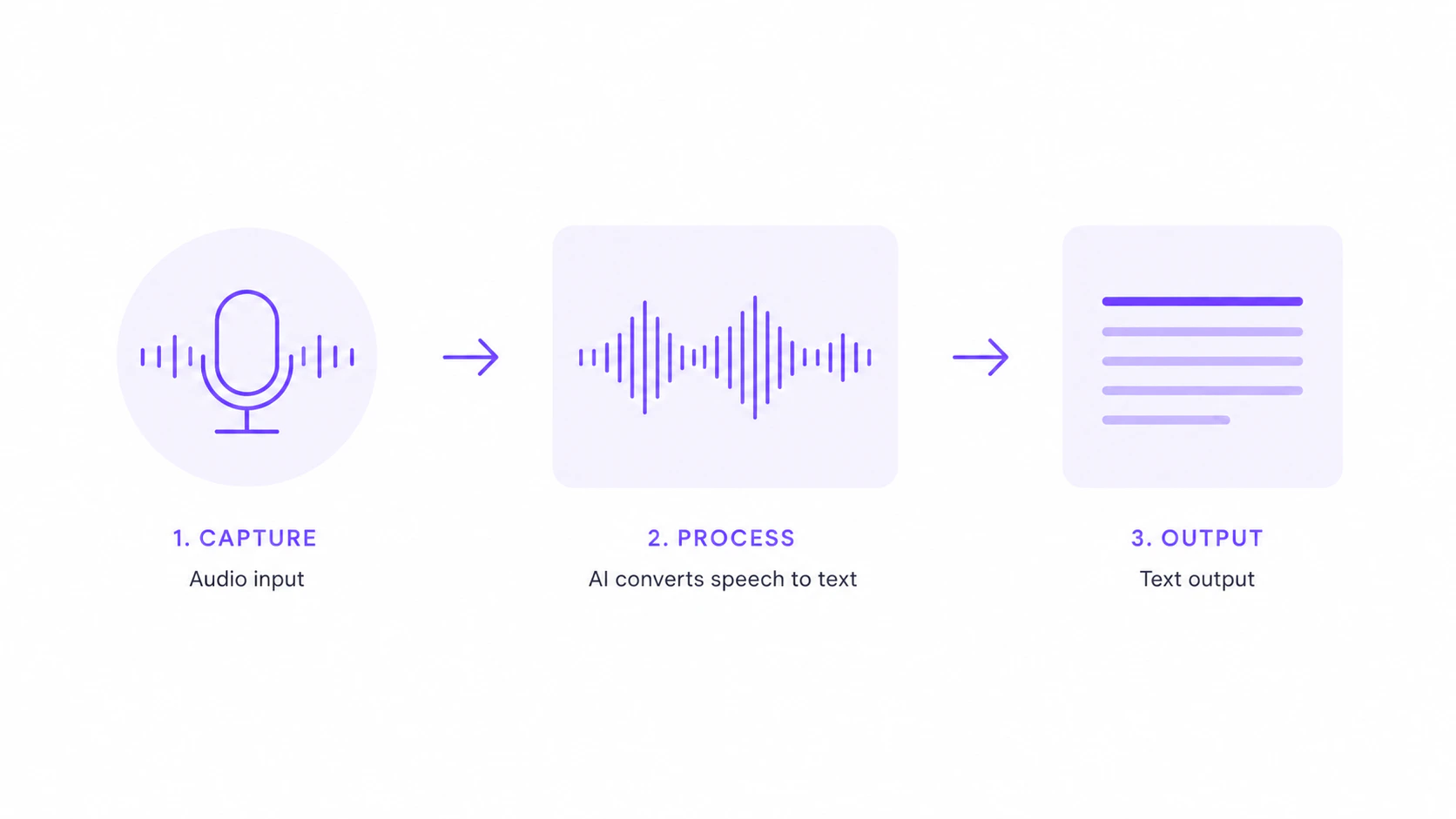
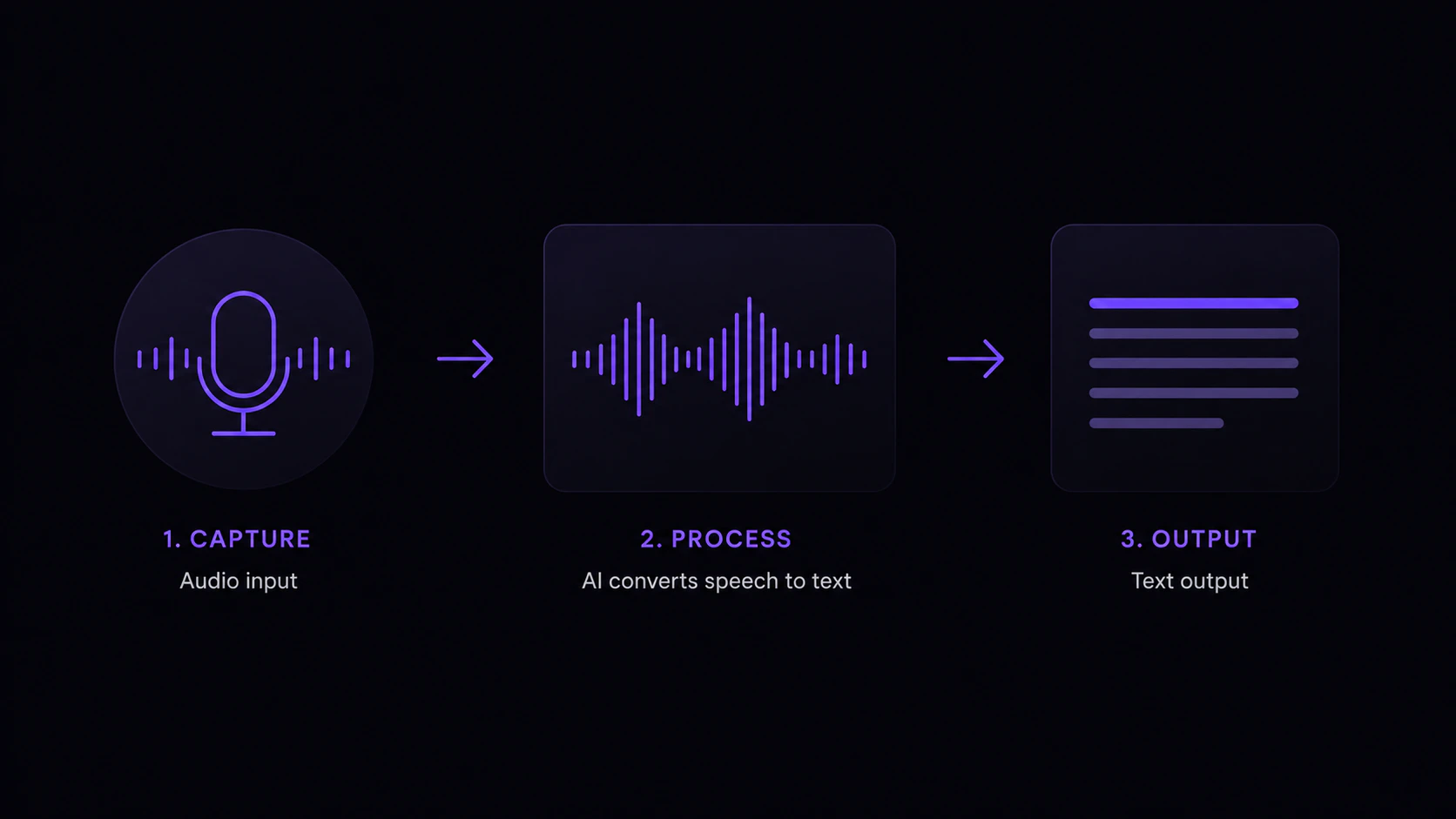
1. Download and Install
- macOS
- Windows
- Download the latest
.dmgfrom vowen.ai - Open the DMG and drag Vowen to your Applications folder
- Launch Vowen from Applications
2. Grant Permissions
On first launch, Vowen will guide you through granting the necessary permissions.- macOS
- Windows
- Microphone: required for recording your voice
- Accessibility: required for auto-pasting text into apps
3. Your First Transcription
Hold the shortcut
macOS: Hold the
Fn key
Windows: Hold Ctrl + Shift↳
Want a different setup? Pick your own shortcut, add a hands-free toggle, or use a mouse button. See clever patterns like promoting push-to-talk into hands-free without lifting a finger.
Speak
Say whatever you want transcribed. Speak naturally. Vowen handles filler words and formatting.
That’s it! You’re now using Vowen for voice-to-text.
Want polished output without effort? Connect an AI provider (Groq, Gemini, OpenAI, Anthropic, and 6+ more) and Vowen will:
- Fix grammar and punctuation while keeping your voice intact
- Convert spoken numbers to digits (“three thousand” becomes “3000”)
- Format lists, emails, and phone numbers automatically
- Apply spoken commands (“new paragraph”, “make this a bullet list”)
What’s Next?
Pick a Transcription Model
Compare local and cloud models to find the best fit
Set Up AI Enhancement
Connect an AI provider for polished output
Customize Shortcuts
Change shortcuts to fit your workflow
Try Command Mode
Give voice commands to AI